
Last updated:
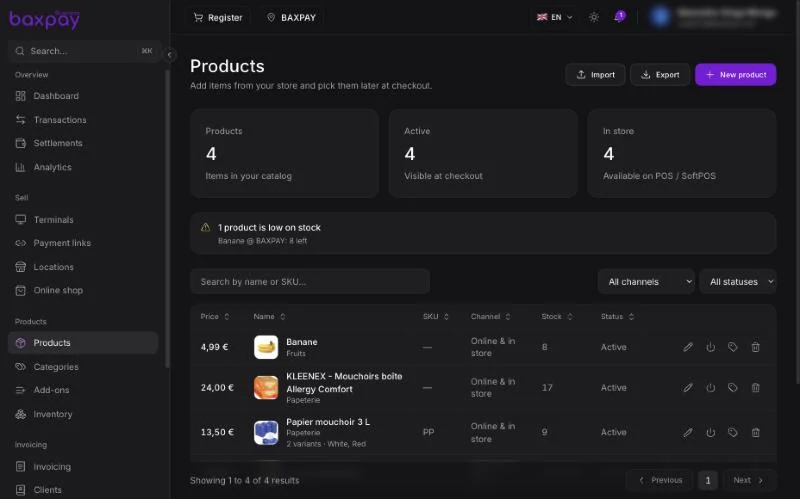
Enable Products
- Open Settings.
- Find the Products section.
- Turn Products on.
- Optionally enable:
- Multi-location
- Register (caisse) checkout
- ERP auto-push (if you use accounting sync)
Without Products enabled, Register and catalog pickers stay hidden.
Online shop (optional)
Products with channel Online or Both can appear on your public storefront.
- Enable Products (above).
- Settings → Preferences → Enable Online shop (requires plan entitlement).
- Open Online shop — set slug, theme, then Publish.
- Share
{slug}.baxpay.com(or a custom domain if your plan allows).
Checkout opens on pay.baxpay.com. Same flow for companies and freelancers.
See Online shop and Plans & pricing.
Create a product
- Open Products → Add product.
- Fill in:
- Name (shown on POS / links)
- Price — VAT-inclusive (TTC) in most EU consumer cases
- VAT rate (%)
- Optional SKU, barcode (EAN/GTIN)
- Channel: Online, In store, or Both
- Track inventory — on if you want stock counting
- Upload a photo and crop it to a square.
- Save.
Channels explained
| Channel | Where it appears |
|---|---|
| In store | Register / Tap to Pay / POS catalog |
| Online | Payment links, Online shop, online pickers |
| Both | Everywhere |
Show catalog on hardware POS
Enable Products, then open Locations → Show products on terminals to choose which Locations and terminals can open the in-store catalog on the POS keypad. See Locations and Terminals.
You can also turn catalog on/off for one device under Terminals → detail.
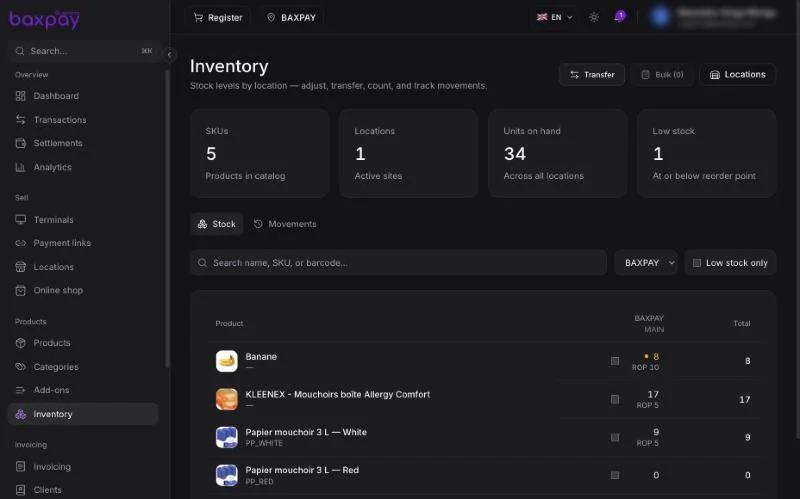
Inventory basics
- Open Inventory.
- See a matrix: products × locations.
- Set on-hand quantity, reorder points, or adjust with a reason (delivery, count, write-off…).
- Use Transfer to move stock between locations.
Every change writes a movement (audit trail).
How stock updates when you sell
When a sale includes catalog lines + a location:
- At checkout start, BaxPay reserves stock for a short time (soft hold).
- When payment succeeds, stock is committed (on-hand decreases).
- If checkout is cancelled / expires, the hold is released.
- Refunds can restock proportionally.
Available to sell = on hand − reserved.
Other tills see the reduced availability while someone is checking out.
Import / export
- Import a spreadsheet to create many products at once.
- Export catalog (and Intrastat-oriented exports when needed).
- Print shelf / barcode labels from a product.
ERP / accounting (optional)
Under Settings → Developers → Accounting, connect tools such as Pennylane, QuickBooks, or Sage to push/pull catalog data. See Developers.
Checklist
- Products enabled
- Register enabled if you use caisse
- Catalog items priced with VAT
- Inventory tracking on for physical goods
- Opening stock set per location