
Last updated:
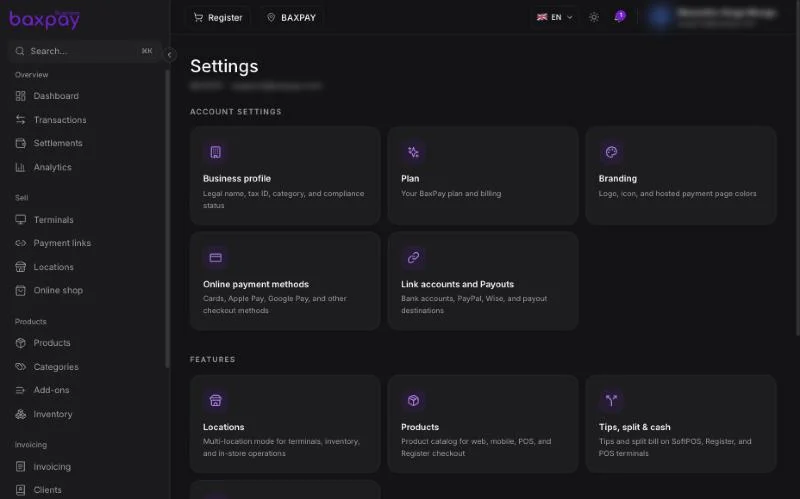
Business profile
Edit:
- Legal / trade name
- Registration / VAT numbers
- Address & contact
- Website / description
Keep this aligned with KYC documents.
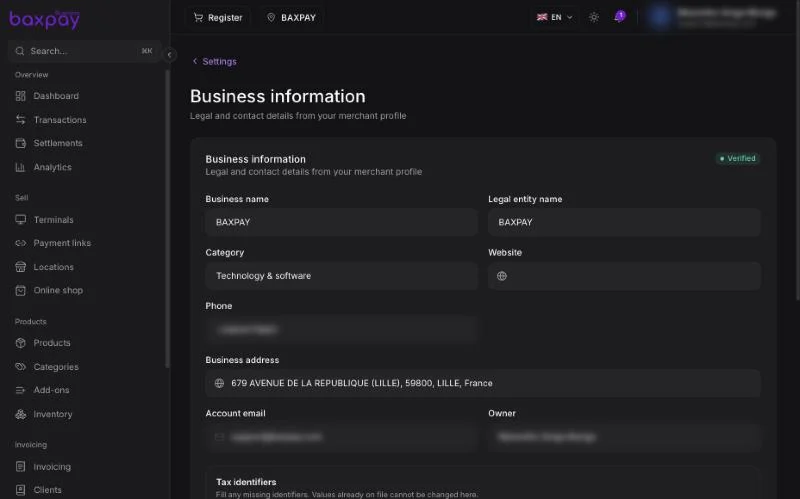
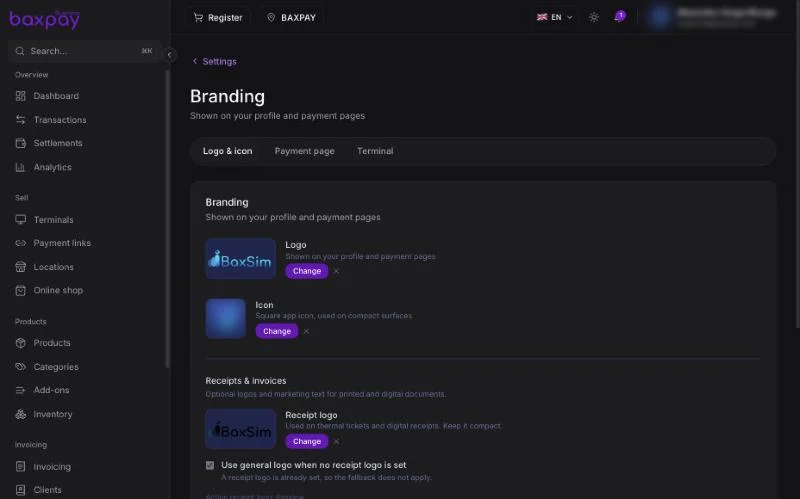
Branding (web & payment page)
Upload:
- Logo — invoices, pay page, emails
- Icon — compact mark
Set payment-page colours (primary / accent) so hosted checkout matches your brand.
Terminal / POS home branding
S700 / S710 only (BaxPay POS on countertop readers). Tap to Pay and WisePad on a phone do not use this home screen.
Under Settings → Branding (Terminal / POS section) you can customise what staff and customers see on the POS home screen:
| Setting | What it does |
|---|---|
| POS home logo | Wordmark / logo on the home screen. If empty, BaxPay uses the system default for the device model. |
| Fullscreen background | Optional full-screen image behind the home UI |
| Primary / secondary colours | Text and accent colours on the home screen (reset restores BaxPay defaults) |
| Bottom navigation | Optional bottom bar: enable it, then choose and reorder tabs (e.g. Home, Products, More) |
A live preview on the same page shows how the home screen will look (including a sample BaxPay Terminal ID and bottom bar when enabled).
Changes sync to paired readers over the next heartbeat (about a minute). Removing a logo or background on the web clears it on the device as well.
Branding vs reader Appearance
- This section = BaxPay POS home look (logo, bg, colours, bottom nav).
- Reader Appearance (theme, brightness, timeout) = display settings on the device — open from More → Settings → Reader device → Appearance. See S700 / S710 reader settings.
Plan
See Plans & pricing.
Products / Register toggles
Under Settings (Products feature block):
| Toggle | Effect |
|---|---|
| Products | Turns catalog on/off |
| Multi-location | Allows more than one shop |
| Register checkout | Shows Register / caisse |
| ERP auto-push | Pushes catalog changes to connected ERPs |
Workspace shortcuts
- Team — invites, roles, PINs
- People — KYC persons
Security
- Multi-factor authentication (when offered)
- Active sessions — revoke lost devices
- Password change
- GDPR / data requests as provided
Tips, split & cash
Under Settings → Tips, split & cash (checkout features):
| Toggle | Effect |
|---|---|
| Tips | Shows tip prompts on POS, SoftPOS, and QR (default ON) |
| Split payments | Shows Split on in-person checkout (default ON) |
| Cash payments | Shows Cash tender on web Register and mobile Sell (default OFF) |
When a toggle is OFF, that option is hidden on web Sell, mobile, and POS after the next refresh / heartbeat.
Guides: Tips · Split payments
Online shop preference
Settings → Preferences → Enable Online shop turns the Online shop product on for your account (plan must allow it). Publishing the storefront is a separate control on the Online shop page — see Online shop.
Preferences
- Language
- Notification preferences
- Theme
- Enable Online shop (when your plan includes it)
Related: S700 / S710 reader settings · Terminals & SoftPOS · QR payments · Analytics
Next: Mobile Business app →