
Last updated:
Prerequisites
- Products enabled
- Plan entitlement for Online shop
- Settings → Preferences → Enable Online shop (merchant toggle) ON
- Catalog items with channel Online or Both
- Claim a slug and Publish on the Online shop page
Enable the feature
- Confirm your plan includes Online shop (Plans & pricing).
- Open Settings → Preferences and turn Enable Online shop on.
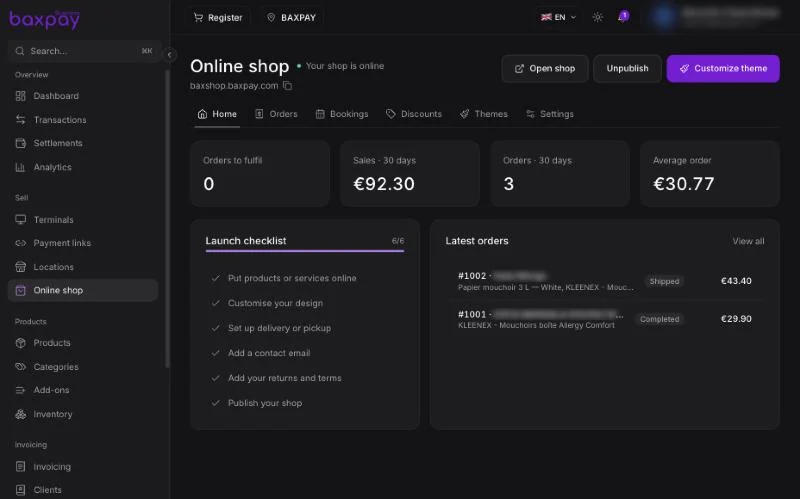
- Open Online shop in the sidebar (Sell section).
- Claim
{yourslug}.baxpay.com. - Theme logo / colours if needed (aligned with payment page branding).
- Toggle Publish when you are ready for the public.
Publishing is separate from the Settings enable toggle — you can prepare the shop before going live.
Catalog channels
In Products & inventory, set each item’s channel:
| Channel | Where it sells |
|---|---|
| In store | Register / POS only |
| Online | Online shop only |
| Both | Register and Online shop |
Stock rules still apply when inventory is tracked.
Customer checkout
- Customer opens your shop URL.
- Adds products to cart.
- Pays on the hosted payment page (card).
- You see the sale in Transactions; stock decrements when inventory is tracked.
Custom domain
On plans that allow it, connect your own domain from the Online shop page (DNS instructions in-product). Until then, {slug}.baxpay.com is enough to sell.
FAQ
Companies and freelancers?
Same Online shop product once plan + Settings allow it.
Do I need my own website?
No — the storefront is hosted by BaxPay.
Where is branding configured?
Shop theme on the Online shop page; shared logo / colours also under Settings → Branding for pay pages.
Next: Tap to Pay →